Welcome to IToxy.com

Hi, Welcome to IT Oxy. This blog is primarily aim to share our information on Information Technology. I really appreciate if you are willing to give any input to this blog. If you want to share something, email at: admin@IToxy.com If you found any post interesting and useful, then please leave a comment and share with your friends.

Welcome to IToxy.com

Hi, Welcome to IT Oxy. This blog is primarily aim to share our information on Information Technology. I really appreciate if you are willing to give any input to this blog. If you want to share something, email at: admin@IToxy.com If you found any post interesting and useful, then please leave a comment and share with your friends.

Welcome to IToxy.com

Hi, Welcome to IT Oxy. This blog is primarily aim to share our information on Information Technology. I really appreciate if you are willing to give any input to this blog. If you want to share something, email at: admin@IToxy.com If you found any post interesting and useful, then please leave a comment and share with your friends.

Welcome to IToxy.com

Hi, Welcome to IT Oxy. This blog is primarily aim to share our information on Information Technology. I really appreciate if you are willing to give any input to this blog. If you want to share something, email at: admin@IToxy.com If you found any post interesting and useful, then please leave a comment and share with your friends.

Welcome to IToxy.com

Hi, Welcome to IT Oxy. This blog is primarily aim to share our information on Information Technology. I really appreciate if you are willing to give any input to this blog. If you want to share something, email at: admin@IToxy.com If you found any post interesting and useful, then please leave a comment and share with your friends.

How to Shrink Document by One Page in Word 2007

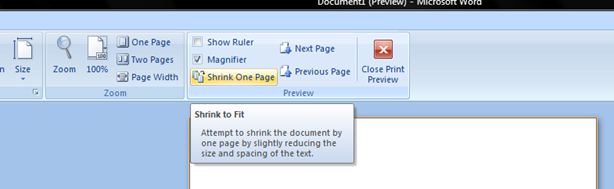
A document whose last page is mostly blank is a waste of printer paper, especially if you have to make a lot of copies. Your letters and mailings will also look mere professional if they fill the pages nicely. If Print Preview reveals a skimpy last page.  Shrink One Page button in Word will tweak the fonts lathe document to make it a page smaller. Don't like the results? Just press Ctrl-Z to Undo.

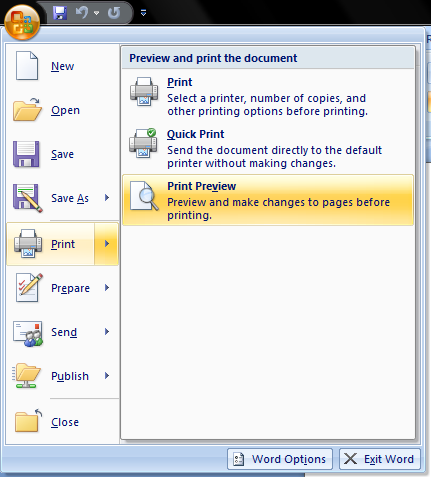
  • Display your document in Print Preview (by either clicking on the Print Preview button on the toolbar or choosing the File, Print Preview command)

    image

  • Click on the Shrink to Fit button on the toolbar of the Preview window

    image

  • Click on the Close button to exit preview and return to your previous view

    Word will automatically reduce the font size of the document (maintaining the relative font sizes).

  • How to Use Document Inspector in Word 2007

    The Document Inspector in Microsoft Word 2007  provides a central location for you to examine documents  for personal, hidden, or sensitive information. You can  use built-in Document Inspector modules to remove unwanted information more easily. Utilizing the Inspector tool is one way of safeguarding any information you want to remain private.

    In documents, personal information is any information that identifies or can be used to identify, contact, or locate the person to whom such information pertains.This includes

  • Your name and initials

  • Your company or organization name

  • The name of your computer

  • The name of the network server or hard disk drive where you saved the document

  • Other file properties and summary information

  • Non-visible portions of embedded OLE objects

  • The names of previous document authors

  • Document revisions

  • Document versions

  • Template information

  • Hidden text

  • Tracked changes and comments

    How to use it?

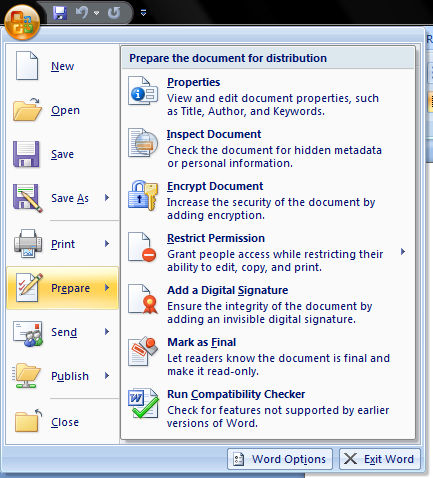
    1.Click the Microsoft Office Button and point to Prepare
    image

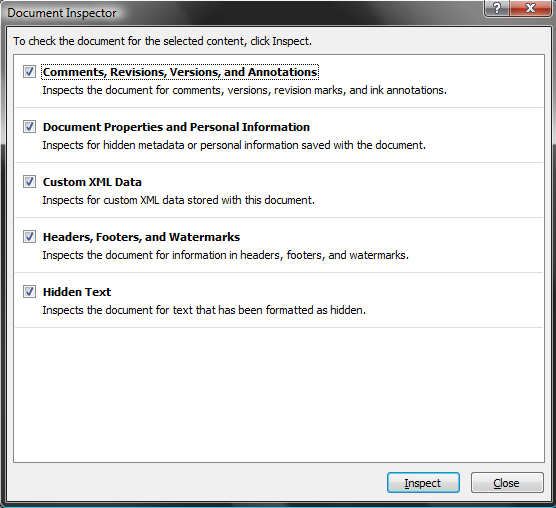
    2.Click Inspect Document. The Document Inspector dialog box is displayed.When launching the inspector, if you haven't saved your file before making the most recent changes, you will be prompted to do so. It's not required that you save; however, the reason we provide this dialogue is because once you run the inspector, and choose to remove certain components of a document, they are GONE.
    image

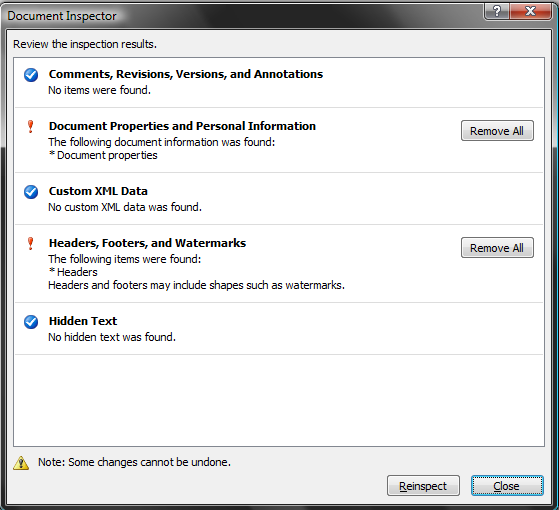
    3.Select the modules corresponding to the types of content you want to search for, and then click Inspect.After the inspection is finished, the Document Inspector dialog box shows which modules found content in the document. It also provides buttons to remove that content.
    image

    The Inspect button also changes to Reinspect. If you click the Reinspect button at this point, the Document Inspector screen is re-displayed, enabling you to choose additional modules for inspection.

    4.To select other modules for inspection, click Reinspect. Otherwise, click Close.

  • McAfee Site Advisor

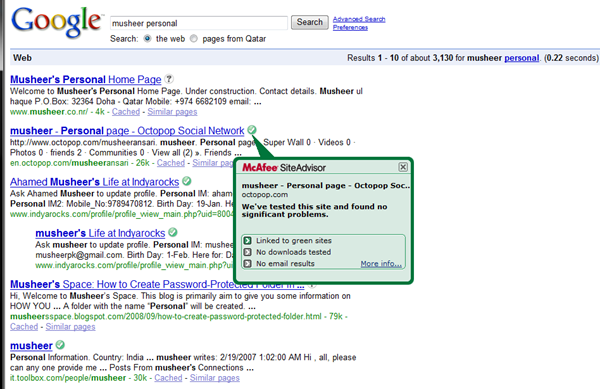
    McAfee SiteAdvisor helps protect you from all kinds of Web-based security threats including spyware, adware, spam, viruses, browser exploits, and online scams. Automated testers continually patrol the Web to browse sites, download files, and sign-up for things with e-mail addresses. As you search, browse, download, or register online, SiteAdvisor's safety ratings help you stay safe and in control.

    When you do a google search or a yahoo search, a little symbol will appear next to each entry. A green check means it is a safe site to enter,no viruses or trojans there. A yellow question mark means it has questionable content.You might get something evil there. A red X means it is a site known for trojans and malicious software. Don't enter a site unless it shows a green check.

  • Protects you from adware, spyware, spam, viruses and online scams.

  • Advises you about the safety of sites using a colored button in your browser toolbar.

  • Enhances your online search by placing safety ratings next to search results.

  • Warns you about dangerous sites and search results with clear messages.

  • Provides you with all the details about a site's safety rating on request.

  • Updates automatically to protect against new threats

    McAfee SiteAdvisor (Free Ver)

    McAfeeSiteAdvisor +: McAfee SiteAdvisor Plus | Mcafee Siteadvisor Plus 2.1.2.25.

  •  
    Copyright 2008 IToxy