Welcome to IToxy.com

Hi, Welcome to IT Oxy. This blog is primarily aim to share our information on Information Technology. I really appreciate if you are willing to give any input to this blog. If you want to share something, email at: admin@IToxy.com If you found any post interesting and useful, then please leave a comment and share with your friends.

Welcome to IToxy.com

Hi, Welcome to IT Oxy. This blog is primarily aim to share our information on Information Technology. I really appreciate if you are willing to give any input to this blog. If you want to share something, email at: admin@IToxy.com If you found any post interesting and useful, then please leave a comment and share with your friends.

Welcome to IToxy.com

Hi, Welcome to IT Oxy. This blog is primarily aim to share our information on Information Technology. I really appreciate if you are willing to give any input to this blog. If you want to share something, email at: admin@IToxy.com If you found any post interesting and useful, then please leave a comment and share with your friends.

Welcome to IToxy.com

Hi, Welcome to IT Oxy. This blog is primarily aim to share our information on Information Technology. I really appreciate if you are willing to give any input to this blog. If you want to share something, email at: admin@IToxy.com If you found any post interesting and useful, then please leave a comment and share with your friends.

Welcome to IToxy.com

Hi, Welcome to IT Oxy. This blog is primarily aim to share our information on Information Technology. I really appreciate if you are willing to give any input to this blog. If you want to share something, email at: admin@IToxy.com If you found any post interesting and useful, then please leave a comment and share with your friends.

How to Completely Remove Chat from your Gmail

If you are like me who uses Gmail for emails but not for chatting, there’s a simple setting that will help you completely remove (and not just hide) the chat box from your Gmail mailbox.
Go to your Gmail Settings page, switch to the Chat tab, choose “Chat Off” and click the “Save Changes” button. Alternatively, you may use this link to directly access your Gmail Chat settings page. You can re-enable chat in your Gmail by using the “Chat On” option.

This setting to disable chat may have been available in regular Gmail accounts for some time (am not too sure) but it was only recently added to Gmail for Google Apps accounts.

Importance of Strong Passwords

The use of strong passwords can slow or often defeat the various attack methods of compromising a terminal’s security.

All of us live in a password driven world.Without password protection, nothing is safe.It  protect our identities on websites, discussion groups, e-mail accounts and more.It is not easy to  remember them all.If  your password is weak,hackers try to break into a computer or secure account by guessing passwords one at a time.

If you use the same password everywhere, increases the risk of your accounts being compromised.Many of us are just recycling the same password for multiple accounts.A new study by security firm Trusteer found that 73 percent of Web users take their online banking password and use it at other Web sites.So always  remember to Use Different Passwords Everywhere.You should change them often, don’t share them,don’t leave them out for others to see.Thus make your password a total mystery to others.

How to create an ideal password?

An ideal password is long and has letters, punctuation, symbols, and numbers.

  • Whenever possible, use at least 8 characters or more. Remember, the longer the password, the stronger it is.
  • The greater the variety of characters in your password, the better.
  • Use the entire keyboard, not just the letters and characters you use or see most often
  • Use special characters such as ! " ? $ ? % ^ & * ( ) _ - + = { [ } ] : ; @ ' ~ # | \ < , > . ? /
  • Use both UPPER and lower case letters
  • Do not begin or end the password with a number
  • The characters should be random, and not follow from words, alphabetically, or from your keyboard layout.


There are plenty of tools  available in net which  will  create strong passwords for you. The PC Tools Secure Password Generator, for example, makes one based on your criteria: how long,include (or don’t) mixed case, numbers,punctuation, similar character replacement,etc. It even provides a phonetic pronunciation guide.

http://www.pctools.com/guides/password/


The Bit Mill  another password generator tool , which can create passwords from one to 128 characters in length, although the default is set to eight. You can vary capital letters, numbers and punctuation

http://www.thebitmill.com/tools/password.html

Others:-
To check your password — is it strong?

How to fix corrupt windows user profile

Every user in the Windows OS has a user folder associated with the account name which  stores computer settings and data.A common problem with Windows machines is a corrupt user profile.So windows fails to recognize the user profile and folder that is linked to the user account.This can be caused by a hard drive error, joining/leaving a domain, file system issues and a change of username.What will happen in this case is that the next time the user logs-on, a fresh, empty profile will be created, named 'user.domain' or 'user.computer' instead of just 'user' -and from that point on, the new profile will be used instead of the correct one.

Before we start learning how we fix any corrupt account make sure you have a an account which either is admin or is  admin privileged.

All the Windows User Profiles are located under C:\Users\UserName which contains all our settings. Now go to your account and unhide hidden folders and uncheck Hide Protected operating system files. You would see three files NTUSER.DAT, NTUSER.dat.log and ntuser.ini which you will need to be careful about.

  • Login with your admin account and  create new account.
  • Now identify which user profile is corrupted and  go to that folder which will be like C:\Users\UserName
  • Unhide Folders / Files and display system files
  • Copy everything from this folder  except three files NTUSER.DAT, NTUSER.dat.log and ntuser.ini
  • Go to new account folder located under C:\users and paste all the files you copied in above step.
  • Logoff and login to the new account to confirm.
  • Delete the old account.

This should fix your problems. Remember many a times because of some bug you might see Windows giving you a brand new profile but if you logoff and try logging in again you would see the issues getting fixed.

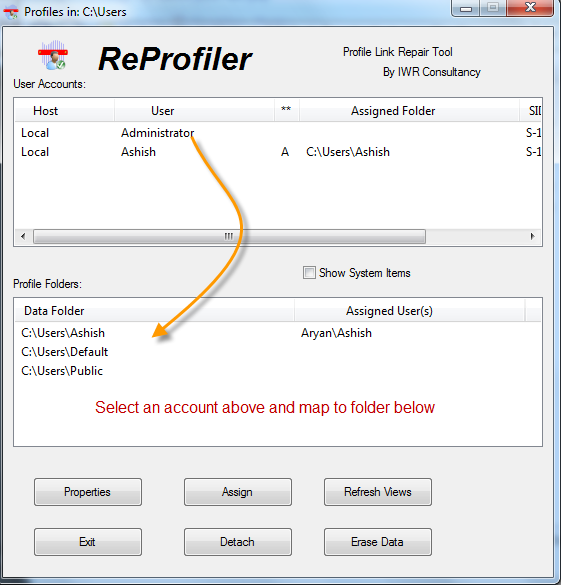
There is another alternative called as Reprofiler a software which can also help you in fix these issues by remapping users to their profiles, fixing registry settings and permissions which is required to fix any corrupt windows account.
image

It displays all the user accounts above and all the windows users folder below. Now to fix it or map to any other account you can just select first a user name above and a folder below and then hit Assign. This will make sure it copies and assigns proper settings. You can also remove / detach folders which is useful when it comes to erase the data.

Download

 
Copyright 2008 IToxy