Welcome to IToxy.com

Hi, Welcome to IT Oxy. This blog is primarily aim to share our information on Information Technology. I really appreciate if you are willing to give any input to this blog. If you want to share something, email at: admin@IToxy.com If you found any post interesting and useful, then please leave a comment and share with your friends.

Welcome to IToxy.com

Hi, Welcome to IT Oxy. This blog is primarily aim to share our information on Information Technology. I really appreciate if you are willing to give any input to this blog. If you want to share something, email at: admin@IToxy.com If you found any post interesting and useful, then please leave a comment and share with your friends.

Welcome to IToxy.com

Hi, Welcome to IT Oxy. This blog is primarily aim to share our information on Information Technology. I really appreciate if you are willing to give any input to this blog. If you want to share something, email at: admin@IToxy.com If you found any post interesting and useful, then please leave a comment and share with your friends.

Welcome to IToxy.com

Hi, Welcome to IT Oxy. This blog is primarily aim to share our information on Information Technology. I really appreciate if you are willing to give any input to this blog. If you want to share something, email at: admin@IToxy.com If you found any post interesting and useful, then please leave a comment and share with your friends.

Welcome to IToxy.com

Hi, Welcome to IT Oxy. This blog is primarily aim to share our information on Information Technology. I really appreciate if you are willing to give any input to this blog. If you want to share something, email at: admin@IToxy.com If you found any post interesting and useful, then please leave a comment and share with your friends.

Gmail Account in Outlook

If you have an Gmail account you have almost 3 gigabytes space on their servers and some people use that space as storage for their messages. But you can also have access to Gmail through Outlook, too if you like. In that case you can write mails and answers using Outlook advantages. You can use Stationery and other possibilities. To start with that, you have to do following:

1. Login to your Gmail Account.

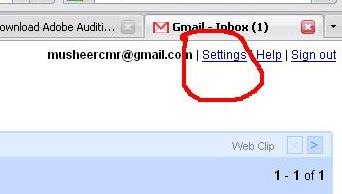
2. Go to Settings.
 0001

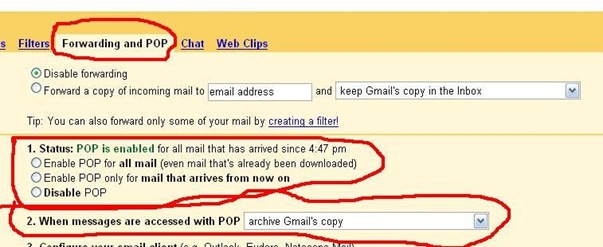
3. Choose Forwarding and POP tab

4. Choose Enable POP and click on Save Changes button.

5. Choose Archive Gmail’s Copy. This selection safe. So your all mail safe in your Gmail All Mail folder. If u no need received mails, you can delete from All Mails folder weekly or monthly.0002
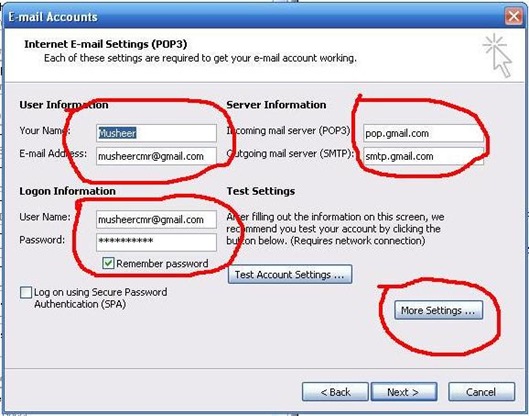
6. Go to Outlook 2003 or 2007 or outlook express Tools menu > Account Settings > Create new Account >

7. Type Your name > Type Email Address > POP3= pop.gmail.com > SMTP= smtp.gmail.com > Username  with @gmail.com > Password > if you want save password click selection. 0003
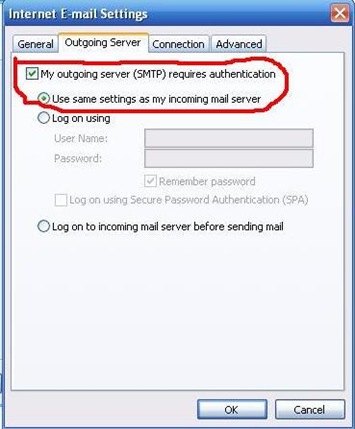
8. Go to More settings > Choose Outgoing server tab > Tick on My outgoing server (SMTP) requires authentication > Make sure Selection is Use same settings as my incoming mail server >
0004

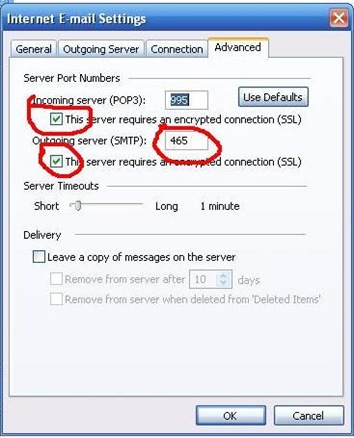
9. Go to Advanced tab > Tick on This sever requires an encrypted selection (SSL) of the incoming server (POP3) > Make sure port 995.

10. Tick on This sever requires an encrypted selection (SSL) of the incoming server (SMTP) > Change port to 465 > Ok > Next > Finish > (if u want test account settings , you can.)
0005

Now your Gmail Fully configured in your outlook. You will get all mail to your inbox or outlook. Then you can use very friendly. Enjoy…. With Google email ….. !

How to hide computer drives to secure data?

This tip is very useful for home users, particularly for those who wants to hide/secure there important data from other users. You can hide any specific local drive or all drives (physical and removable) of the system and network drives also. By disabling the display of drives, you can safe your personal data from non-technical users on a single computer.

Follow the given steps to change the system drives registry value:

  • To use this feature, you will need to be logged into your computer with

administrative rights.

  • Click Start button and type regedit in Run option then press Enter for next.

  • Here locate the location to:

· HKEY_CURRENT_USER\Software\Microsoft\Windows\CurrentVersion \Policies\Explorer

· Here in right side panel, right click to create a new DWORD value

with name NoDrives (it is case sensitive), then assign number

to its value data box.

· Now if you want to hide all system drives then modify value data

to 3FFFFFF .

· For specific drive use values (For example, for A, B, C, D, E, F, G,

H drives, the values are 1, 2, 4, 8, 16, 32, 64, and 128 respectively).

· In this case we are trying to hide F drive, so we modify the value data

box to 32.

· Now close the registry editor and restart your computer after any

changes to go into effect.

· But next time, if you want to unhide this drive then simply change

the value data box or delete the DWORD item.

  • Again close the registry editor and restart your computer after any

changes to go into effect.

How to increase the Browsing and Downloading speed in Windows Vista?

With windows Vista you have noticed the slow internet speed. The web browsing and downloading speed is very slow as compare to previous versions of windows. You can open the same sites in windows XP and server 2003 with the normal speed.

Follow the given steps to increase the Vista browsing speed:

First go to Advance tab in Internet Explorer and turn off the TLS (Transport Layer Security) encryption option. Here to fix problem with some secure pages turn on the SSL 2.0 (Secure Sockets Layer) feature and click Ok button to close it.

In windows Vista, the TCP autotuning feature is enabled by default. Some web servers do not respond properly to this feature, so it appears that some sites open with very slow speed.

To use this feature, you will need to be logged into your computer with administrative rights.

First click on Start button and type CMD in Run option then press Enter.

At Command Prompt, type the following command and press enter.

netsh interface tcp set global autotuninglevel= disabled

This command will disable the TCP autotuning feature. Now close the command Prompt and restart your computer after any changes to go into effect.

You can easily restore these setting by typing the following command at Command Prompt.

netsh interface tcp set global autotuninglevel= normal

Now close the command Prompt and again restart your computer after any changes to go into effect.

 
Copyright 2008 IToxy