


 Meeting new people and chatting with them on Google Talk can be a very enriching experience. The problem comes when that person and you don’t speak the same language and the communication flow is frequently interrupted by vocabulary lapses and constant dictionary look-ups. Google became aware of this issue and decided to solve it in a really handy way: by enabling a bunch of bots that automatically translate any text you type in into the target language.
The translating bots in Google Talk work in a very simple way. You only have to select the ones you’re interested in from the bot list and add them to your Google Talk contact list, as if they were just another friend. There are quite a few combinations to choose from, and the email address you have to use to add them always follows the same pattern: [source language]2[target language]@bot.talk.google.com. Thus a bot that translates from English to German would be en2de@bot.talk.google.com, one that translates from Spanish to English would be es2en@bot.talk.google.com and soon.
Bot List
| Languages | Bots | Bots |
| Arabic - English | ar2en | en2ar |
| Bulgarian - English | bg2en | en2bg |
| Czech - English | cs2en | en2cs |
| Danish - English | da2en | en2da |
| German - English | de2en | en2de |
| German - French | de2fr | fr2de |
| Greek - English | el2en | en2el |
| Spanish - English | es2en | en2es |
| Finnish - English | fi2en | en2fi |
| French - English | fr2en | en2fr |
| Hindi - English | hi2en | en2hi |
| Croatian - English | hr2en | en2hr |
| Italian - English | it2en | en2it |
| Japanese - English | ja2en | en2ja |
| Korean - English | ko2en | en2ko |
| Dutch - English | nl2en | en2nl |
| Norwegian - English | no2en | en2no |
| Polish - English | pl2en | en2pl |
| Portuguese- English | pt2en | en2pt |
| Romanian - English | ro2en | en2ro |
| Russian - English | ru2en | en2ru |
| Swedish - English | sv2en | en2sv |
| Chinese - English | zh2en | en2zh |
| Traditional Chinese - English | zh-hant2en | en2zh-hant |
| Traditional Chinese - Chinese | zh-hant2zh | zh2zh-hant |
* don't forget to add @bot.talk.google.com.
 Once you’ve added a bot, open a chat with it and type in the sentence you want to translate. The bot will reply with the translation, ready for you to copy on your friend’s chat window. Needless to say, you can use these automatic translations for multiple purposes: from being able to communicate in several languages to playing a joke on a friend or – only for the most cheesy ones – saying “I love you” in a dozen different languages.
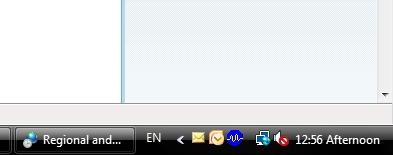 I like customizing my computer to a certain extent – wallpapers, fonts, a few colors and that’s it – but some people seem to be addicted to customization. They change almost every element on the PC, from a complete visual theme to the icons used for every single app. Thinking about these customization addicts, I’ve come up with a simple trick that lets you put any text on the system tray, beside the Windows clock. Want to know how?
 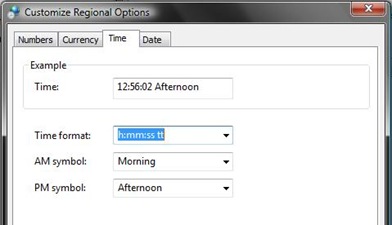 All you have to do is open the Control Panel and click on the Regional and Language Options icon. Then click on the Customize button on the window that’s just opened and select the Time tab.
 It’s a crazy situation - and one that you feel only Microsoft could have created - but there are many users who feel that Windows Vista is so bad, they’ve actually gone to the effort of replacing it completely with Windows XP. It’s a controversial step that shouldn’t be taken lightly because Microsoft have now discontinued production of XP.


