Welcome to IToxy.com

Hi, Welcome to IT Oxy. This blog is primarily aim to share our information on Information Technology. I really appreciate if you are willing to give any input to this blog. If you want to share something, email at: admin@IToxy.com If you found any post interesting and useful, then please leave a comment and share with your friends.

Welcome to IToxy.com

Hi, Welcome to IT Oxy. This blog is primarily aim to share our information on Information Technology. I really appreciate if you are willing to give any input to this blog. If you want to share something, email at: admin@IToxy.com If you found any post interesting and useful, then please leave a comment and share with your friends.

Welcome to IToxy.com

Hi, Welcome to IT Oxy. This blog is primarily aim to share our information on Information Technology. I really appreciate if you are willing to give any input to this blog. If you want to share something, email at: admin@IToxy.com If you found any post interesting and useful, then please leave a comment and share with your friends.

Welcome to IToxy.com

Hi, Welcome to IT Oxy. This blog is primarily aim to share our information on Information Technology. I really appreciate if you are willing to give any input to this blog. If you want to share something, email at: admin@IToxy.com If you found any post interesting and useful, then please leave a comment and share with your friends.

Welcome to IToxy.com

Hi, Welcome to IT Oxy. This blog is primarily aim to share our information on Information Technology. I really appreciate if you are willing to give any input to this blog. If you want to share something, email at: admin@IToxy.com If you found any post interesting and useful, then please leave a comment and share with your friends.

“Show Hidden Files and Folders” not Working ?

Do you encounter problems like when you go to Windows Explorer, Tools Menu--->Folder Options--->View Tab--->Hidden Files and Folders--->"Show hidden Files and Folders"and you would like to view hidden files and folders but after applying, it will not actually show the hidden files and folders, and even when you tried it all over, it will just come back.


It was probably some virus attack after which the Windows registry was not being updated properly.There are so many methods to restore back the registry.If one method is not working, you can  try another one.

Method-1

Go to registry editor by running regedit in the run box.
Go to this key:

HKEY_CURRENT_USER\Software\Microsoft\Windows\CurrentVersion\Explorer\Advanced\Hidden

In the right hand area, double click hidden and change the value to 1.

Now you’re all set to go. Check it in your tools menu if the changes have taken effect

Method-2

1. Click “Start” -> “Run…” (or press Windows key + R)
2. Type “regedit” and click “Ok”.
3.Find the key:

HKEY_LOCAL_MACHINE\SOFTWARE\Microsoft\Windows\CurrentVersion\Explorer\Advanced\Folder\Hidden\SHOWALL

4. Look at the “CheckedValue” key. This should be a DWORD key. If it isn’t, delete the key.
5. Create a new key called “CheckedValue” as a DWORD (hexadecimal) with a value of “1”.

6.Also look for key that says “DefaultValue” and change its value to “2“
7. The “Show hidden files & folders” check box should now work normally

image

Method-3

Download this Reg key, Unzip it > Right Click on "fix.reg" > Choose "MERGE"
Now try Unhiding your Hidden Files

Method-4
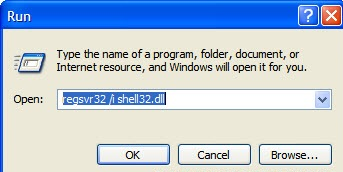
Open command prompt and execute this command---> regsvr32 /i shell32.dll.That will return the Default Local Machine entries which may have been changed back to their individual defaults so that when you select not to hide files, they are shown etc.Then you can go into folder options and reset your options.Some malware is using this ploy too, like infected flash drives. so it is recommended that every time you insert a flash disk scan it first.
Secure Your Laptop With Laptop Alarm

Did you ever hesitate to leave your laptop for a few minutes in a public space like a library? No need for that with Laptop Alarm. Laptop Alarm will emit a loud alarm whenever someone tries to steal your laptop.

  • Protects using proven technologies when your power cable or external peripherals are disconnected or when the mouse is moved
  • Compatible with all Windows  versions
  • It's just 200 kb!

Laptop Alarm is the recommended solution for anyone with a laptop on the road or in public places.


OS: Windows 98/Me/NT/2000/XP |Freeware

Tweak Vista Settings with Ultimate Windows Tweaker

Ultimate Windows Tweaker is a Tweak UI Utility for tweaking and optimizing Windows Vista, 32-bit & 64-bit.The utility has a simple easy-to-use user interface, with the tweaks being classified in separate heads based of their functionality. Most tweaks are hidden inside Vista, and what this tweaker does is to try and put the useful one's in one place.

Its only 368 KB EXE file which even doesn’t need any installation. You can directly run it after downloading so you can also carry it on your USB drive.You can also create a system-restore point just by clicking a button in the Ultimate Windows Tweaker window--handy just in case a tweak goes awry. Or click Restore Defaults to set everything back the way it was.

The tweaks are classified under seven categories and can be accessed through a common interface, just like your Windows Vista Control Panel.
1) Personalization,
2) User Accounts & UAC,
3) System & Performance,
4) Security,
5) Internet Explorer (IE7 / IE8)
6) Network Optimization
7) Additional Options

Ultimate Windows Tweaker

SysReq:Vista32/64 bit|I E 7 or higher|Freeware|368KB

 
Copyright 2008 IToxy